Categories
Privacy

How to make sure Big Tech really isn’t listening

Our privacy is decreasing as we become more reliant on our devices. We enjoy the convenience of voice recognition and commands, but these features expose us in ways we might not be aware of.

Whether we consented to it or not, our smartphones, speakers, and home devices are always listening. In most cases, they need just a “wake word” to activate. Tap or click here to find out if your iPhone or Android phones are listening.

You can fiddle with software settings, but this is a somewhat limited solution as apps can work around it. Sometimes the simplest method is best, and we have a couple of cheap and easy fixes for you.

Plug the leak

When you plug in a headset, your device’s microphone is disabled in favor of the external microphone. What if you could fool your phone, tablet, laptop, or computer into believing that you plugged in your own microphone? That’s where microphone blockers come in.

Newer devices have microphones controlled by software, so there’s no physical switch to disable the microphone. Products like this Mic-Lock microphone blocker are designed to work around this. It’s available from Amazon for under $12.
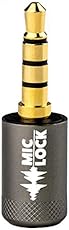
Mic-Lock Microphone Blocker – Audio Input Blocking Device (3.5mm) for Laptops, Smartphones, Tablets, and Desktop Computers – Data Security,…

$19.99

Rated 4.1 out of 5 by 294 reviewers on Amazon.com

Buy Now

The Mic-Lock houses a semiconductor circuit that mimics a live microphone. This disables your device’s microphone and blocks all audio. Plug it into your phone and it will think you just switched over to a headset.

The Mic-Lock houses a semiconductor circuit that mimics a live microphone. This disables your device’s microphone and blocks all audio. Plug it into your phone and it will think you just switched over to a headset.

The Mic-Lock even works on devices that need an adapter for a 3.5mm connection, such as a newer iPhone. “If you have a headphone jack and want an extra layer of privacy you should get it. I even tried this on a new iPhone without a jack but with an adapter and it worked,” one verified purchaser wrote.

Beyond the device itself, apps have been known to snoop on their users. Tap or click here to see how one of the most popular apps out there was caught.

The DIY option

Remember that post from Mark Zuckerberg that revealed his method to block access to his laptop camera? The founder of the largest social network on the planet put a piece of tape over his webcam.

RELATEDHow to stop all your smart devices from listening to you

You can take a cue from Zuck and create your own low-cost solution to the microphone issue. Grab a pair of cheap headphones and cut the cord near the jack. Now you can plug it into your computer or phone without worrying about live sound input.

If you don’t want to cannibalize your headphones, you can get this set off of Amazon for less than $5.

Wired Earbuds,Headphones with Microphone, in-Ear, Suitable for Running Fitness, Sweat-Proof, Soundproof, Support iPhone Android Mobile…

Rated 3 out of 5 by 9 reviewers on Amazon.com

Buy Now We may receive a commission when you buy through our links, but our reporting and recommendations are always independent and objective.

Categories
Privacy

Simple ways to stop advertisers from following you online

We all know that prickling feeling when we see an ad online or on our phone for something we just talked about with a friend.

Big Tech companies say they’re not listening to us and feeding ads for things they hear. I say you can never be too safe. Tap or click for a simple trick to block the microphone on your computer or phone.

Speaking of simple, this quick test tells you how much information your browser is leaking. Tap or click to test yours. Don’t like the results? It’s time to pick a new browser.

If you’re sick of handing your private info to advertisers, here are a few ways you can shut them out in just a few clicks.

How do advertisers decide what to show you?

Your internet behavior dictates the ads you see. Through a process called retargeting, your data is crunched to give companies a picture of your online behavior. This list includes sites you visit, products you add to your cart and ads you click.

Algorithms analyze your visits over time. One method to help stop your activity from being tracked by advertisers, and other nefarious entities, is to block or limit third-party cookies in your browser.

How to block cookies in your browser

To block cookies in Google Chrome, simply click the three-dot menu in the upper right corner and choose Settings. Scroll down and tap Advanced, then scroll to Privacy and security and click Site settings. Tap on the Cookies and site data option and enable Block third-party cookies.

For Microsoft Edge, select the three-dot menu in the upper top right corner, then choose Settings Site permissions > Cookies and site data.

In Mozilla Firefox, tap on the three-line menu in the top right corner, then click on Settings. Choose Privacy and Security, then click on the Custom option and check Cookies. Select All third-party cookies.

For Safari, choose Preferences Privacy. From there you can select Block all cookies or choose an option like Prevent cross-site tracking.

Go incognito

There’s a common misconception that incognito mode hides what you browse from Google, your internet service provider, your work, and everything else. It doesn’t. But it does remove most cookies collected when you load a webpage.

To use Incognito Mode in both Chrome and Firefox, tap the menu (three-dot or line, respectively, on the top right corner of the browser), then New Incognito Window.

To browse in private using Edge, click on the three-dot menu and choose New InPrivate window.

In Safari, click File New Private Window.

Incognito mode isn’t a fix-all, but it does have some practical uses. Tap or click here for six of my favorites.

Choose a security-first option

Ditching your current search engine can also limit advertisers from tracking you. One option is DuckDuckGo. It allows you to search the internet and protects your privacy. There’s no tracking, collecting, and sharing of your personal information.

The problem: The search results you get with DuckDuckGo aren’t the best.

Tap or click for a list of search engines that respect your privacy.

Dive into your settings

Double-check your security and privacy settings in accounts such as Facebook or Google to help stop advertisers from tracking you. Be sure to check settings that include permissions, cookies, and site data.

With these settings, you can control what info websites can use and what content they show you. However, there is no guarantee you will save yourself from being tracked by all advertisers.

Tap or click to stop Facebook from passing everything you do to the highest bidder.

Remove your info from data broker sites

You’ve seen these creepy sites. They sell all kinds of information on consumers, like you, to people and businesses willing to pay.

The sheer amount of data collected will make your skin crawl. It includes:

  • Name
  • Address
  • Income
  • Websites you visit
  • Whom you connect with online

Tap or click for methods to remove your info from three popular sites.

Turn on a VPN

A virtual private network, or VPN, is one of the best methods for shutting out annoying advertisers. VPNs increase your privacy and security by encrypting your data, concealing your online activities, and manipulating your IP address to make it appear information is coming from a different location.

Together, these steps prevent retargeting as advertisers can’t tell where your internet activity is coming from, providing you with the anonymity you deserve.

Bonus Tip: Essential tech cleanups to do before 2022

Is your digital life in need of a little TLC? In this fun podcast, you’ll learn a few cleaning secrets, along with simple methods of sorting the clutter, clearing out junk and freeing up space on your devices. Looks like you just found your new holiday project.

Check out my podcast “Kim Komando Explains” on Apple, Google Podcasts, or your favorite podcast player.

Listen to the podcast here or wherever you get your podcasts. Just search for my last name, “Komando.”

What digital lifestyle questions do you have? Call Kim’s national radio show and tap or click here to find it on your local radio station. You can listen to or watch The Kim Komando Show on your phone, tablet, television, or computer. Or tap or click here for Kim’s free podcasts. Copyright 2022, WestStar Multimedia Entertainment. All rights reserved. By clicking the shopping links, you’re supporting my research. As an Amazon Associate, I earn a small commission from qualifying purchases. I only recommend products I believe in.